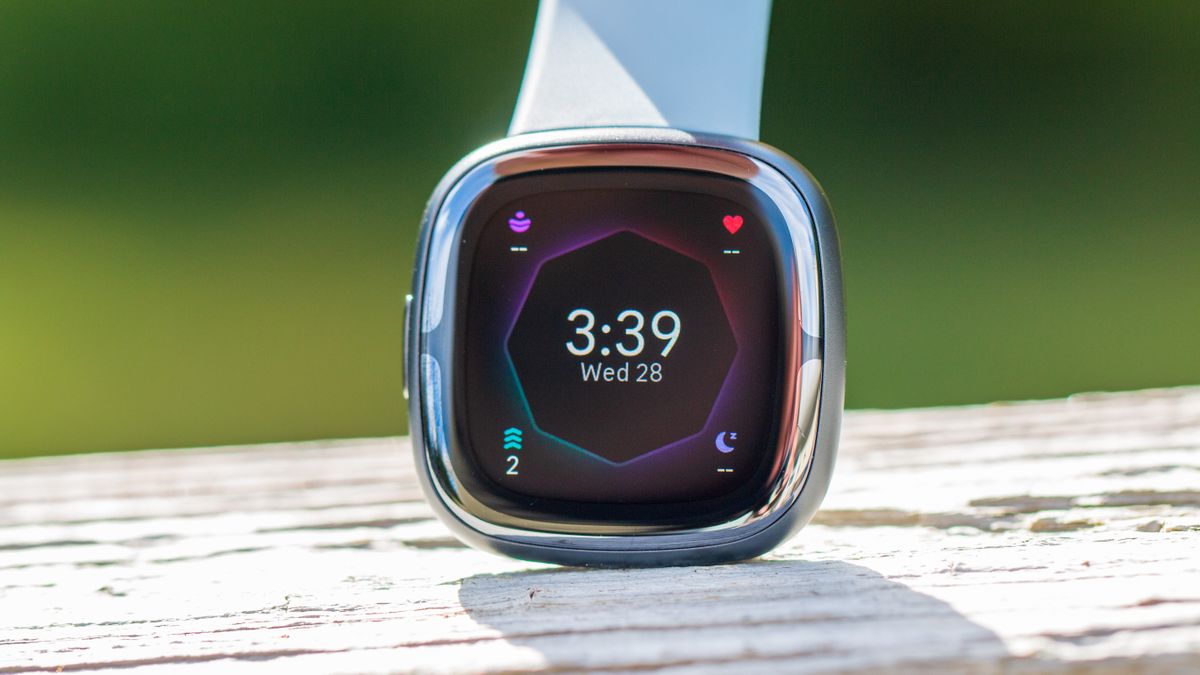
Out of the box, both the Fitbit Sense 2 and Versa 4 are equipped with Fitbit Pay when it comes to making contactless payments. That’s all fine and dandy if you have already been using it, but now that Google Wallet is available, you might want to use that instead.
Before you can start to use Google Wallet with Fitbit Sense 2 and Versa 4, you’ll first need to make sure that your wearable is updated. This is easy enough, as you’ll likely be prompted to install the necessary update if you haven’t already. Once the update is complete, you’ll be able to switch away from Fitbit Pay in favor of Google Wallet on Fitbit’s latest wearables.
How to set up Google Wallet on Fitbit Sense 2 and Versa 4
1. Open the Fitbit app on your phone that’s paired with your Fitbit wearable.
2. Tap Today in the bottom toolbar.
3. In the top left corner, tap your profile image.
4. Select your Sense 2 or Versa 4 from the list of devices.
5. Tap Wallet.
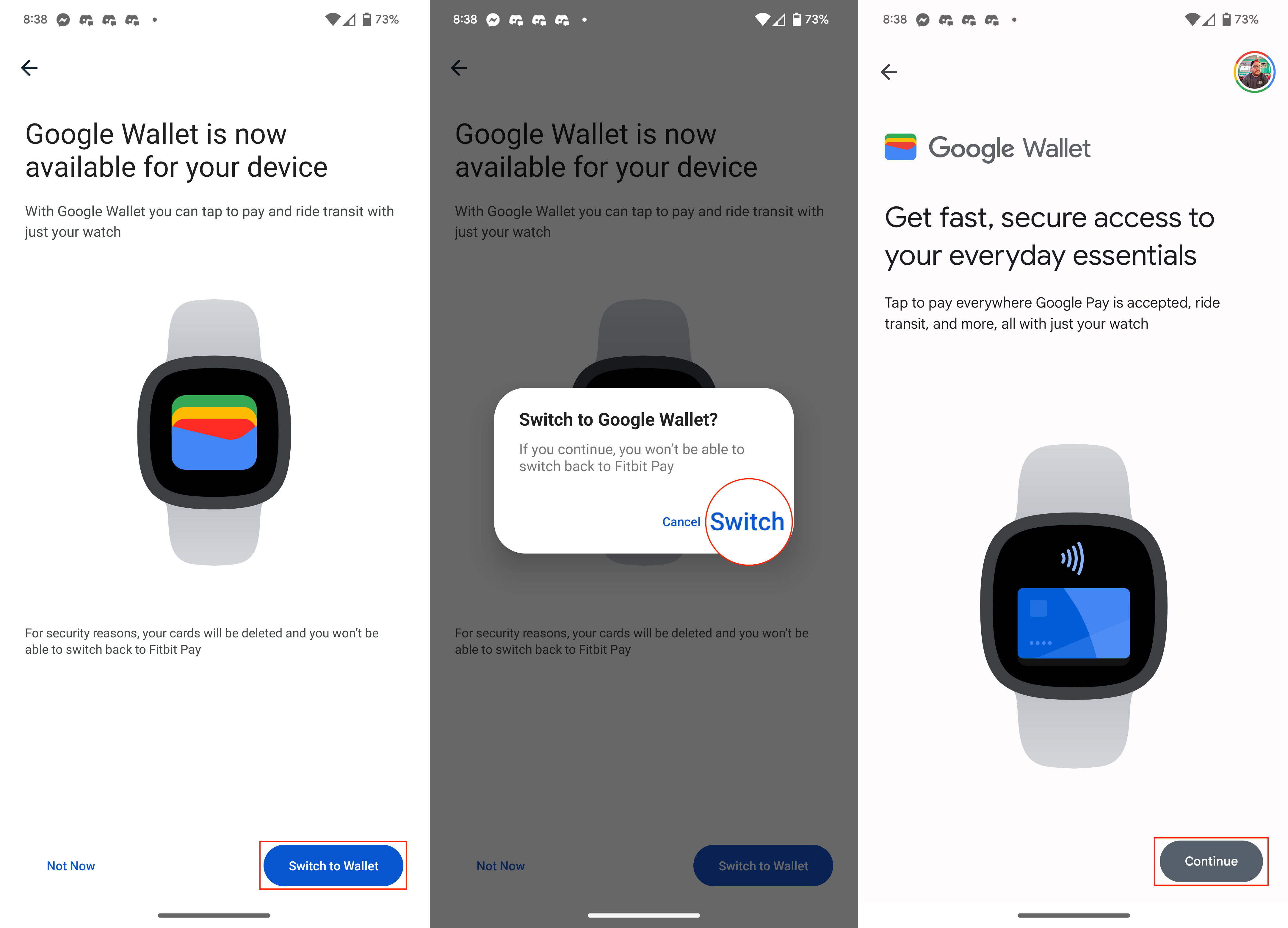
6. If prompted, tap the Switch to Wallet button.
7. Tap Switch to confirm.
8. In the bottom right corner, tap the Continue button.

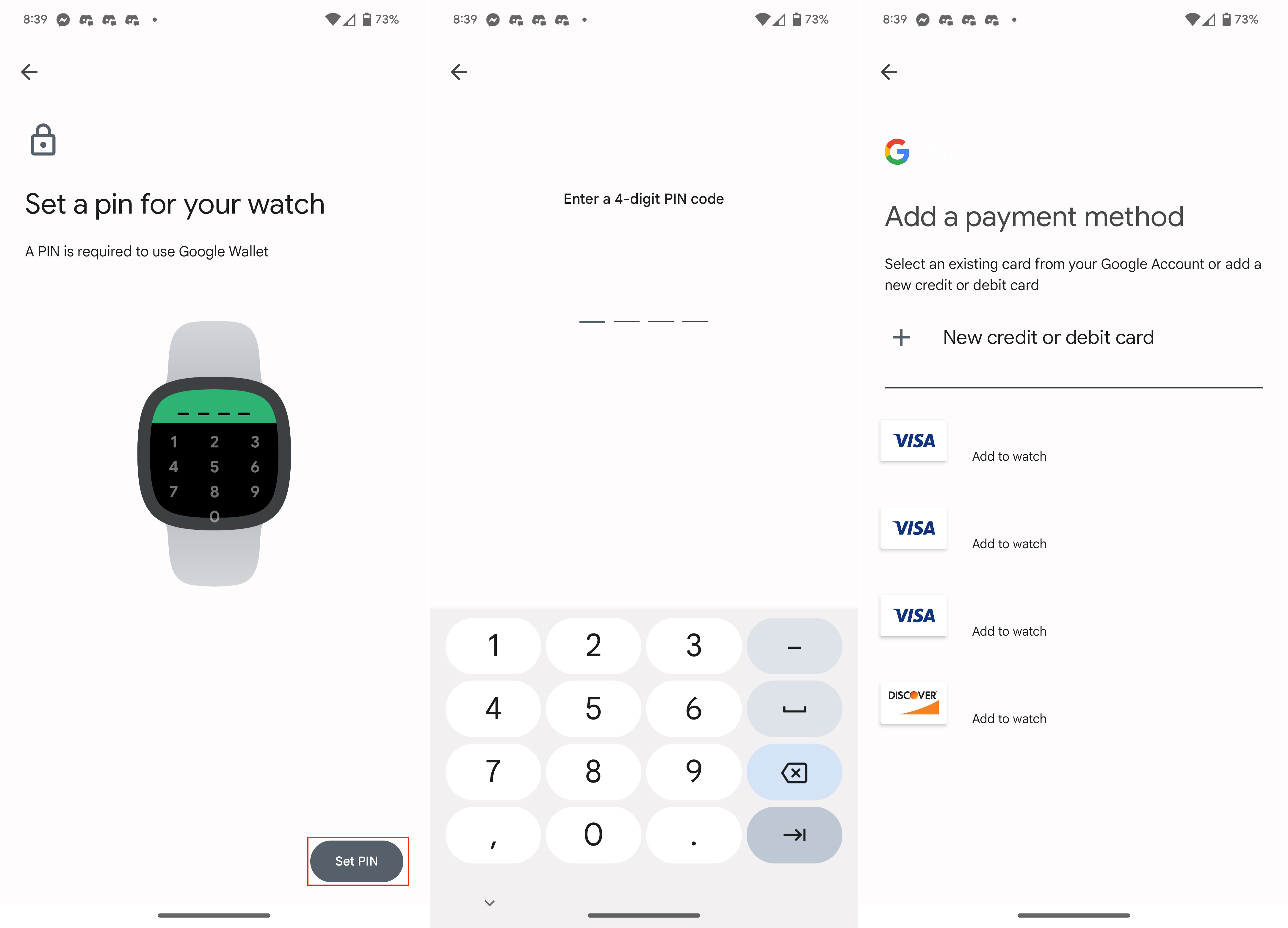
9. Tap Set PIN.
10. Enter a 4-digit PIN code.
11. Re-enter the PIN code to confirm.
12. Select a card from the list of options already tied to your Google account. You can also tap New credit or debit card to add a card.
13. Follow the on-screen prompts to confirm your card details and complete the setup process.
How to use Google Wallet on Fitbit Sense 2 and Versa 4
Now that you have finished setting up Google Wallet and switching over from Fitbit Pay, you can use your smartwatch for contactless payments. There are actually two ways to do this, but here’s how to use Google Wallet on Fitbit Sense 2 and Versa 4 without any additional setup:
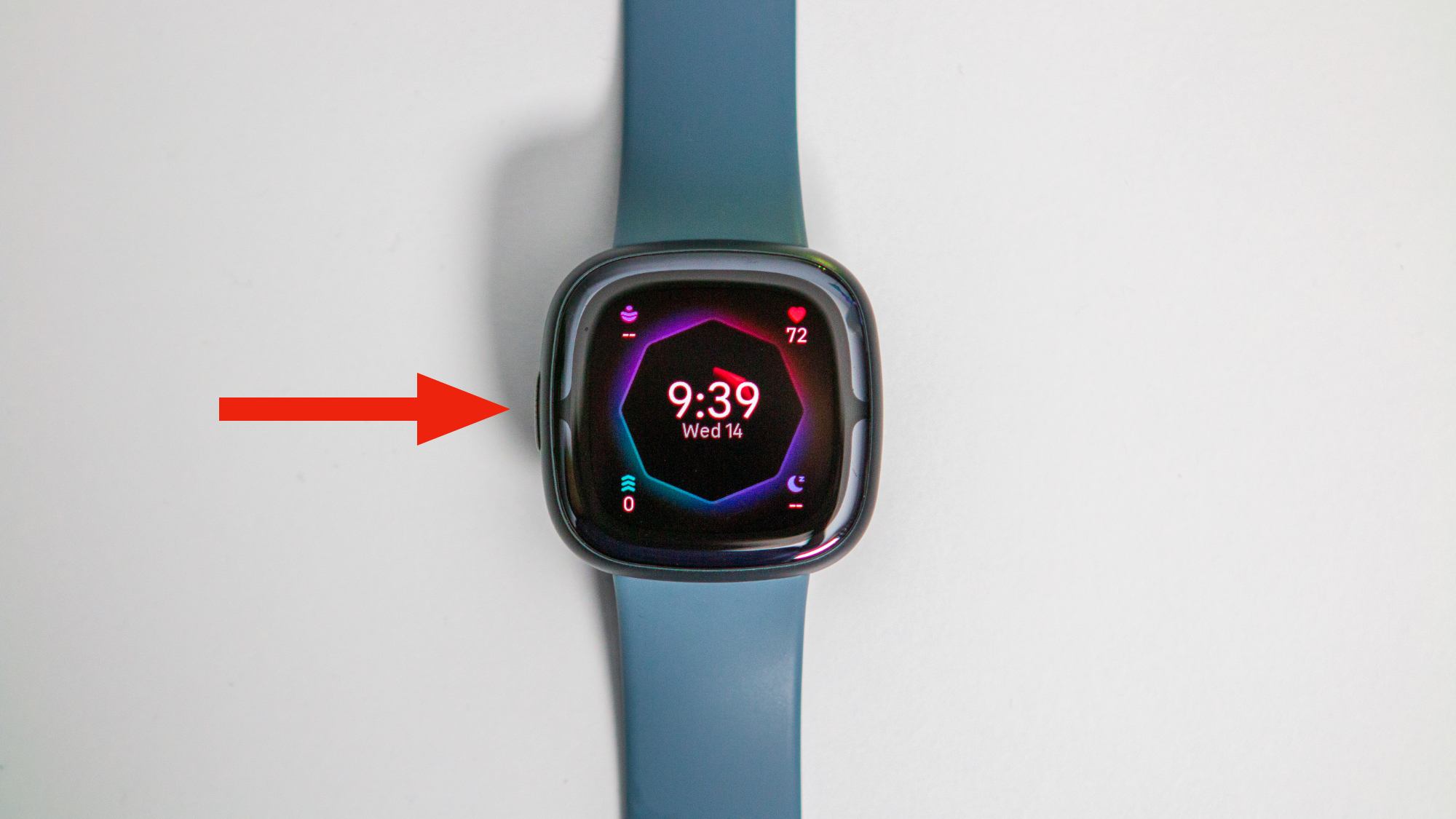
1. Press the Side button on your Fitbit.

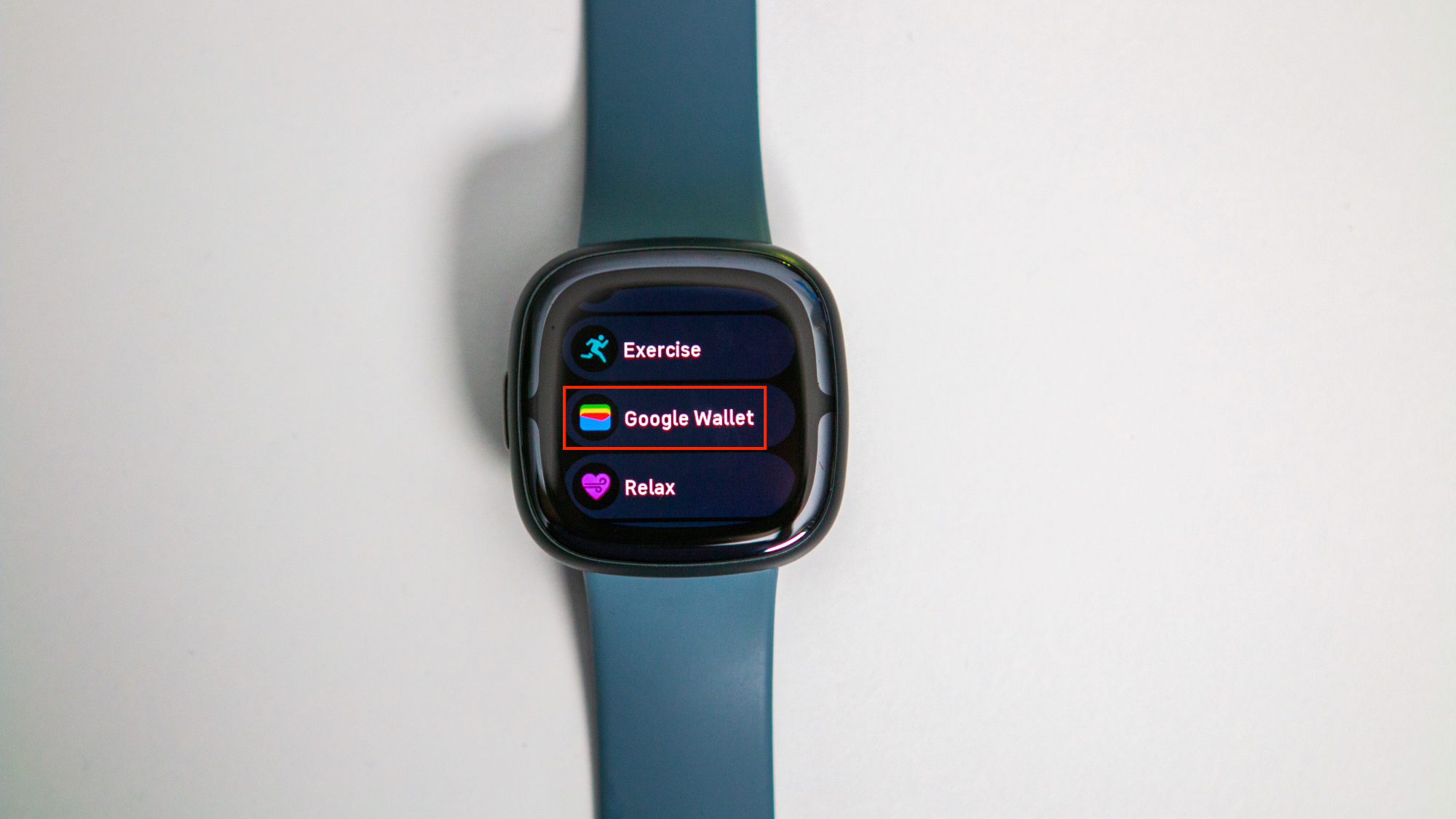
2. Scroll down and tap Google Wallet.
3. Enter your PIN code.
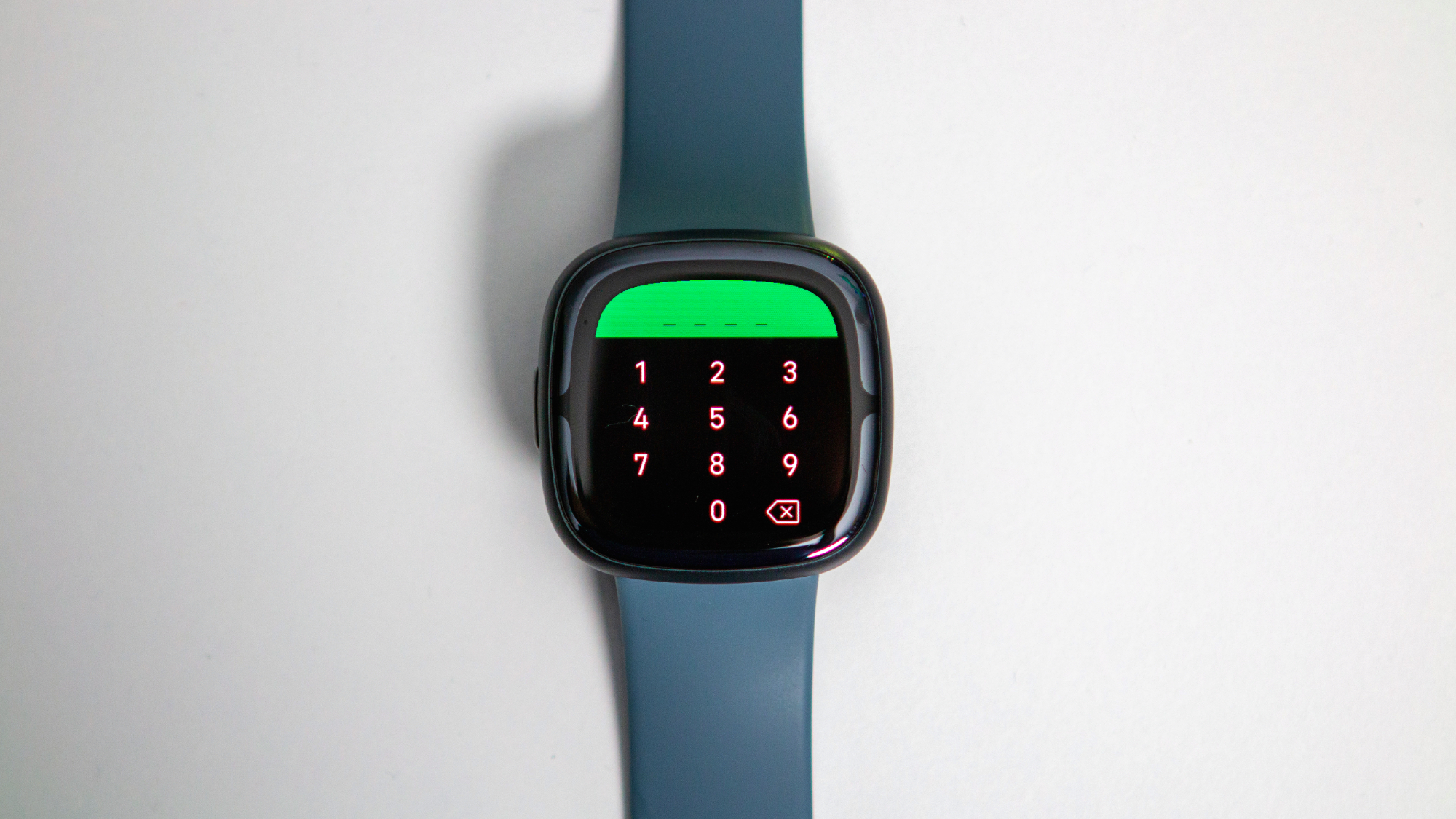
4. Hold your wrist up to the payment terminal until you feel a vibration.
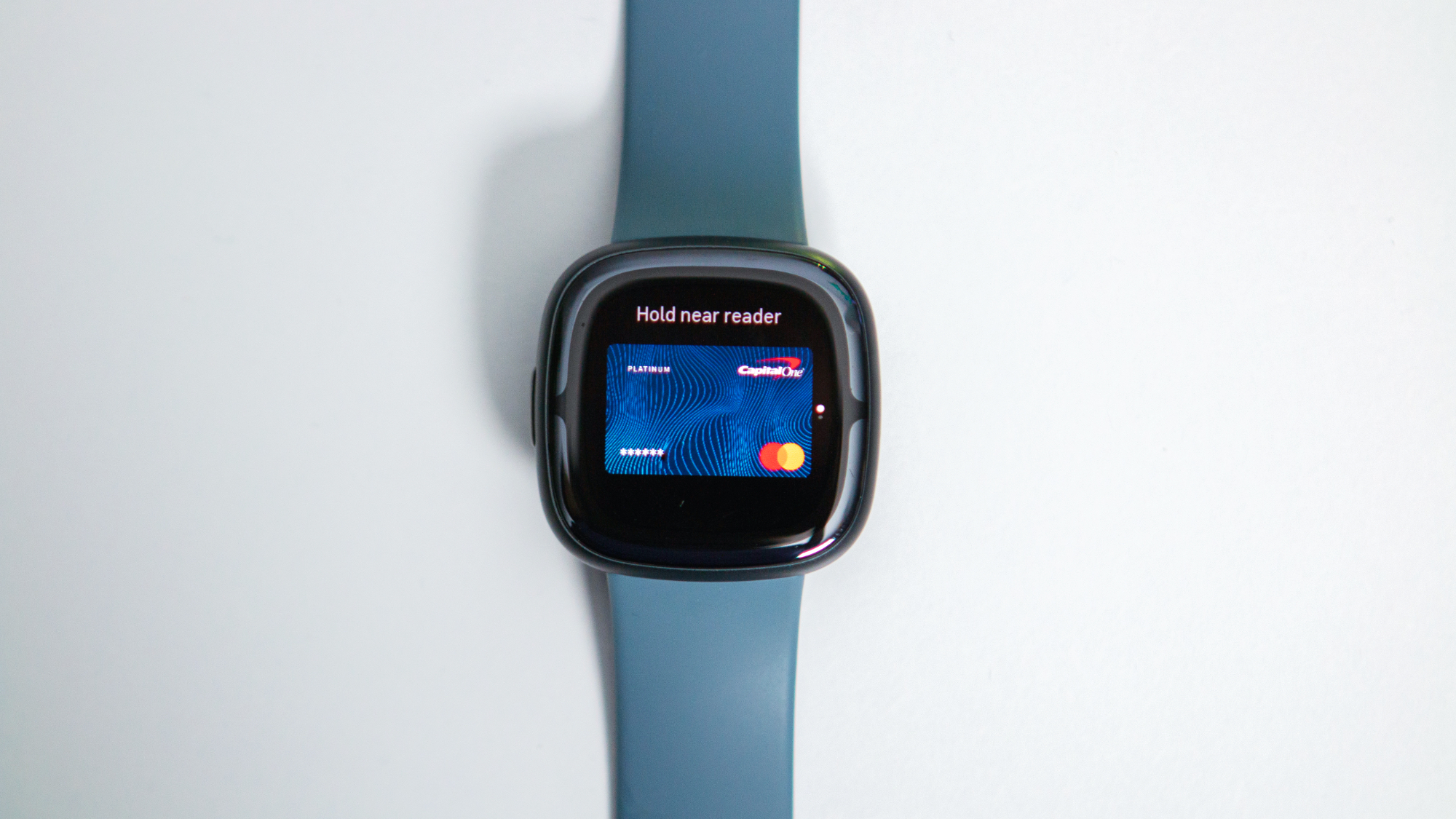
Quickly access Google Wallet on Fitbit Sense 2 and Versa 4
We’re extremely happy to see Fitbit make the decision to bring back the physical button with the Sense 2 and Versa 4. Not only is this more reliable than the touch-sensitive button from previous iterations, but it also makes it easier to use the built-in shortcut functionality. By default, this is set to launch Amazon Alexa, but you can actually customize this to quickly access and use Google Wallet on Fitbit Sense 2 and Versa 4.
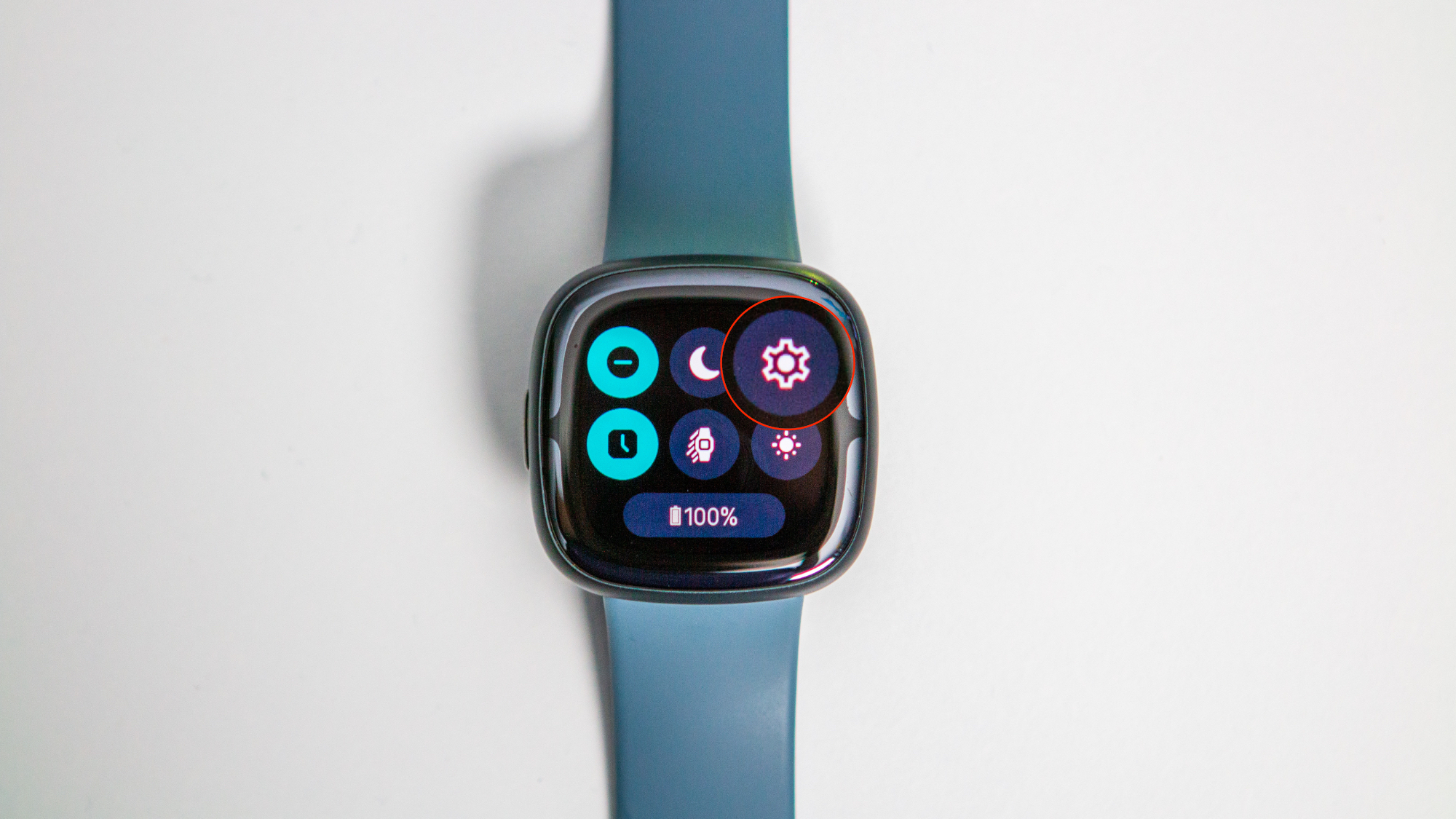
1. Swipe down on your Fitbit’s watch face to reveal the Quick Settings panel.
2. Tap the Settings icon.
3. Scroll down and tap Shortcut.
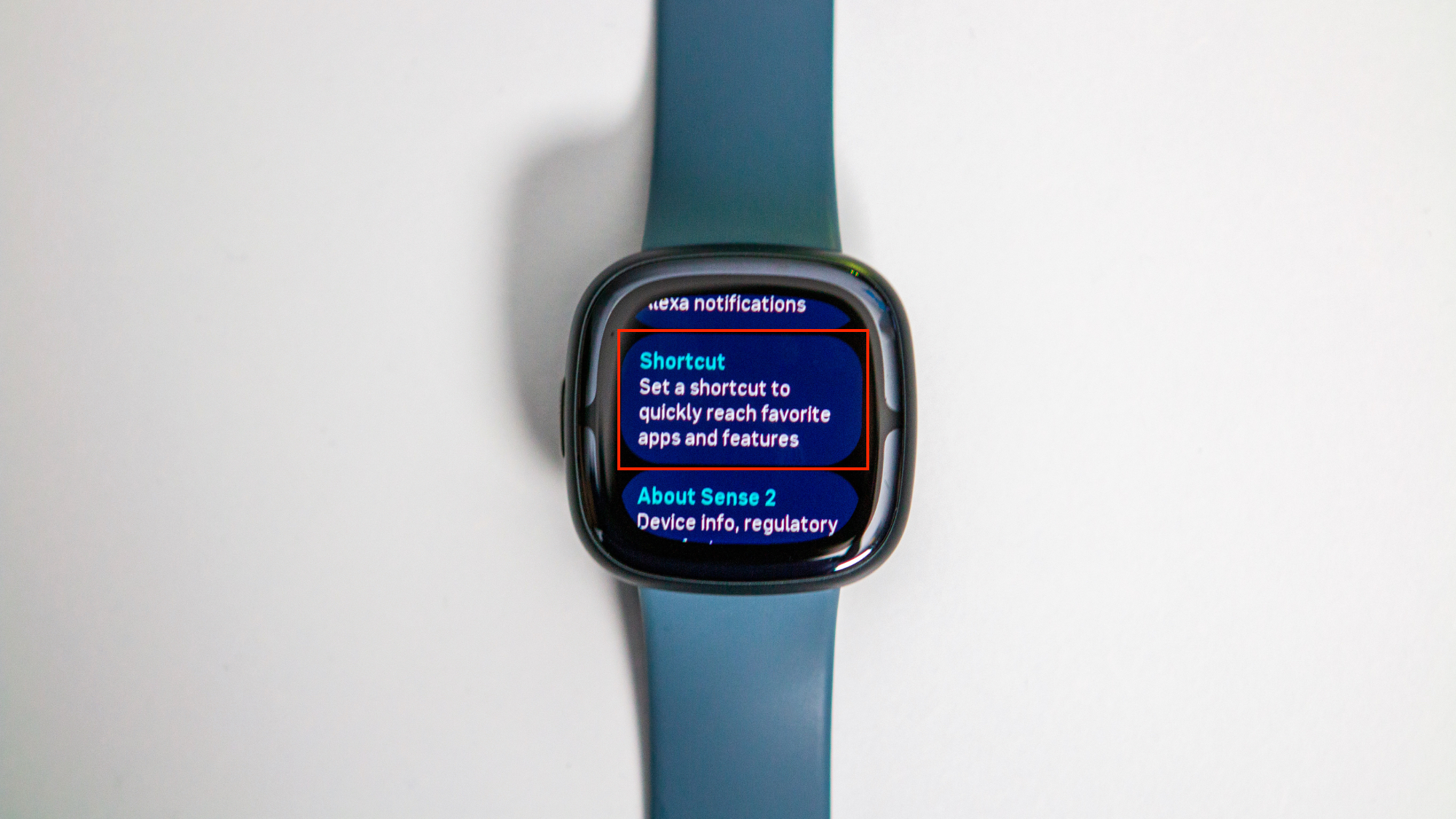
4. Tap the toggle to enable the Shortcut functionality.
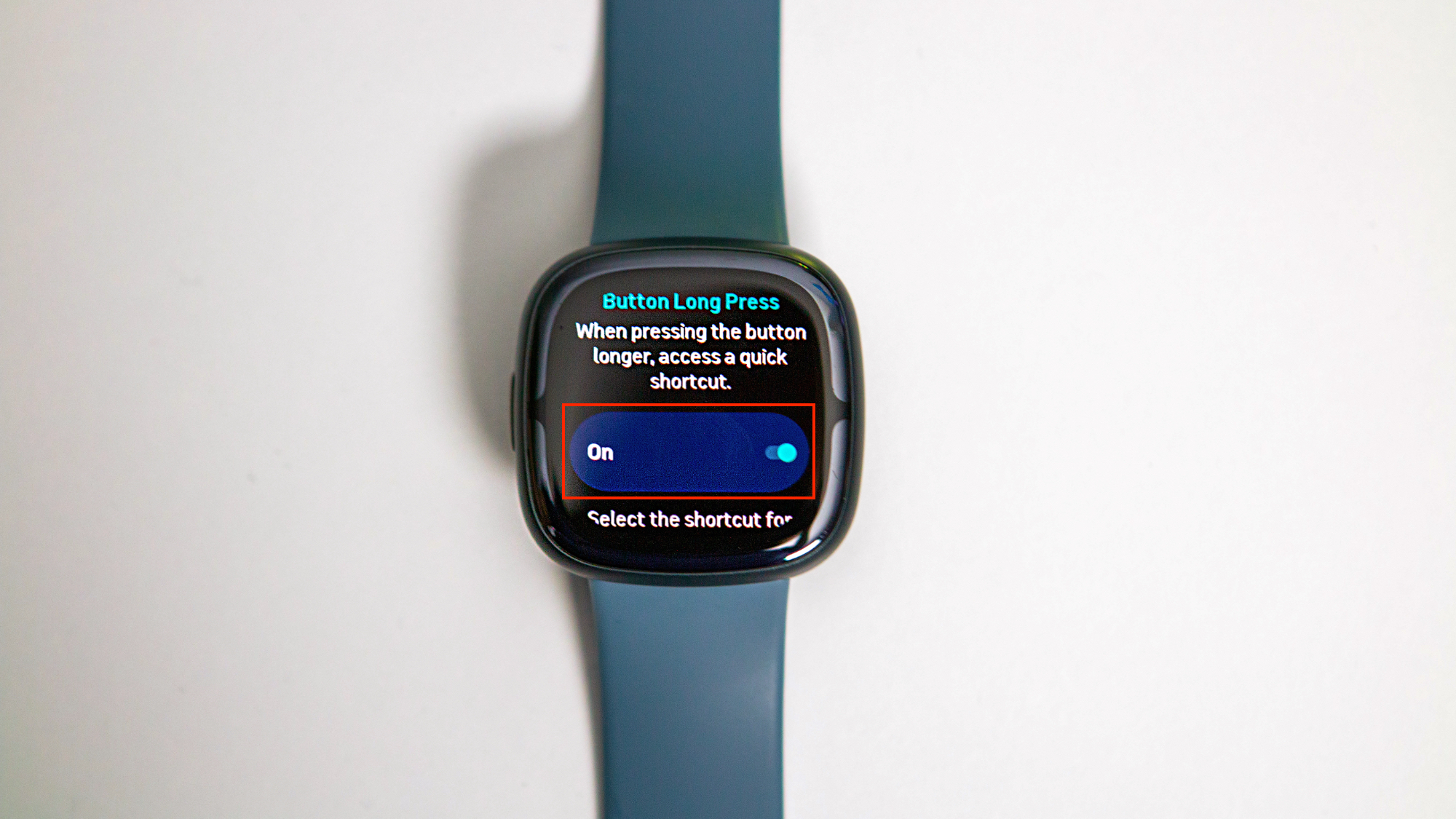
5. Scroll down and tap Long press.
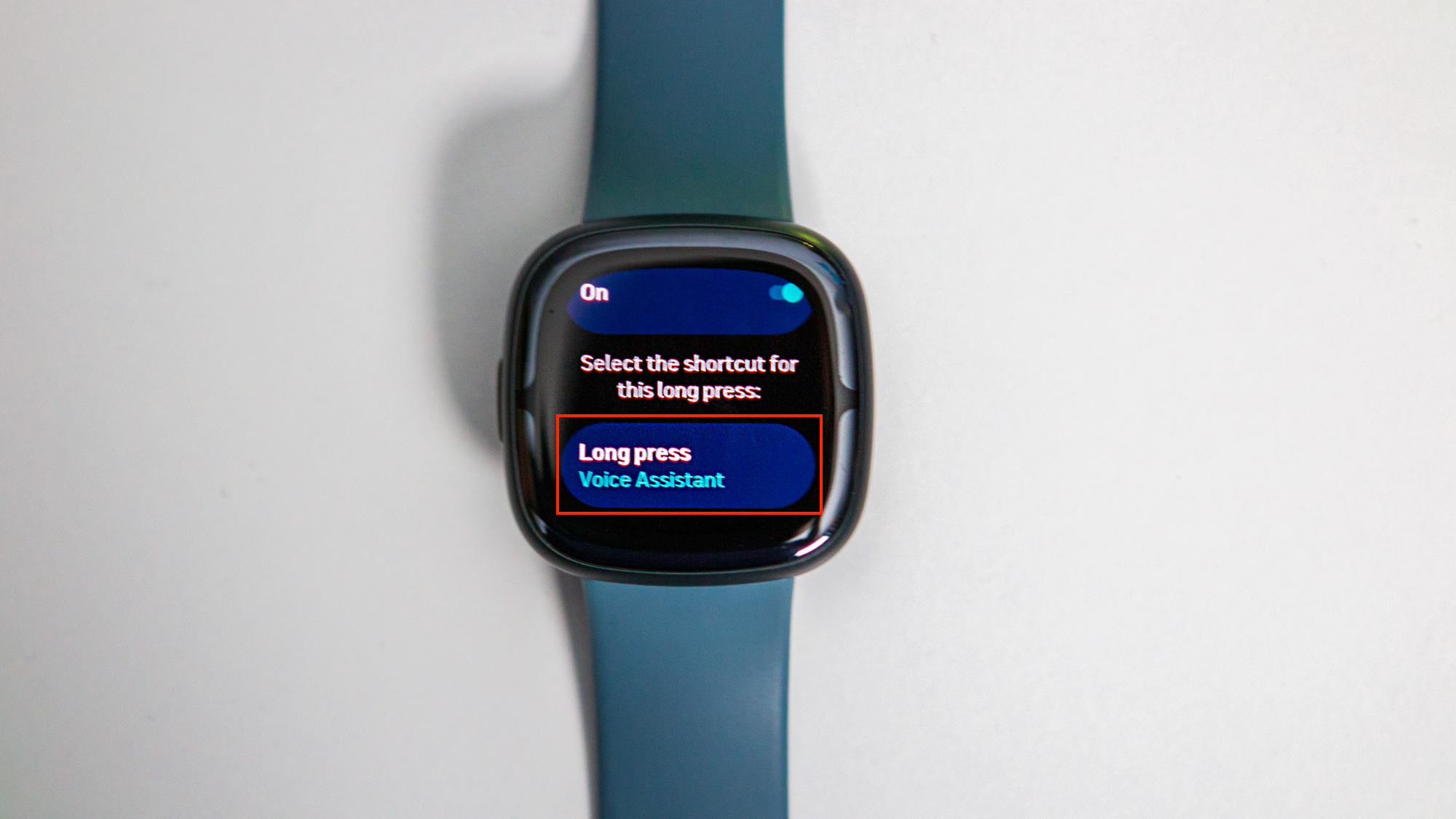
6. Select Google Wallet from the list of options.
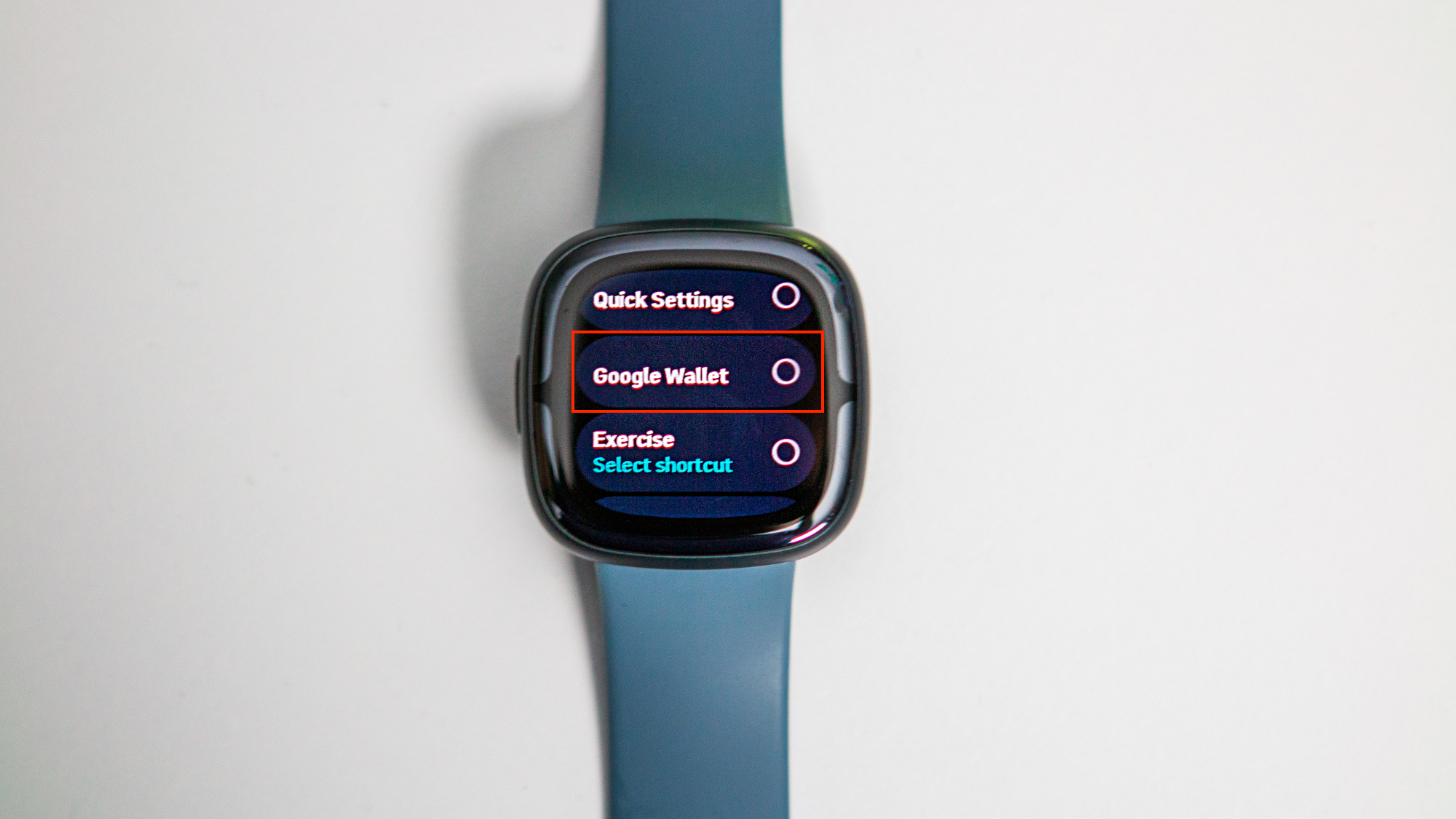
7. Press the Side button to exit the Settings app and save your changes.
You can finally ditch Fitbit Pay for Google Wallet
Truth be told, there’s nothing inherently wrong with Fitbit Pay, as it has been the default contactless payment option on the best Fitbit wearables for years. However, now that Google owns Fitbit, it was only a matter of time before we saw some form of Wallet or Google Pay arrive.
And while both the Sense 2 and Versa 4 have been overshadowed by the release of the Pixel Watch, it’s still great to see that Fitbit hasn’t just given up completely on its flagship smartwatches. Now, we’re just hoping to see Fitbit bring back the ability to download and install third-party apps on its latest wearables.

The flagship Fitbit
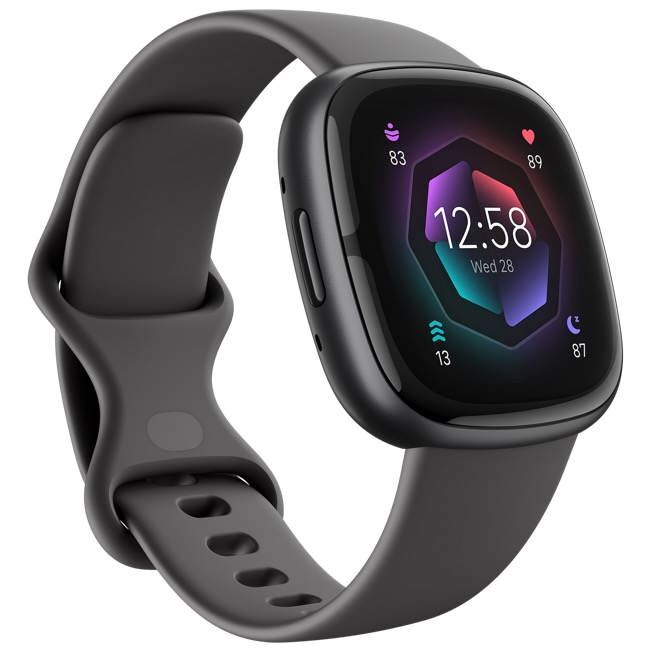
The Fibit Sense 2 offers pretty much everything you could want, and then some. There are plenty of health tracking sensors onboard, and the interface is much more pleasant than before.
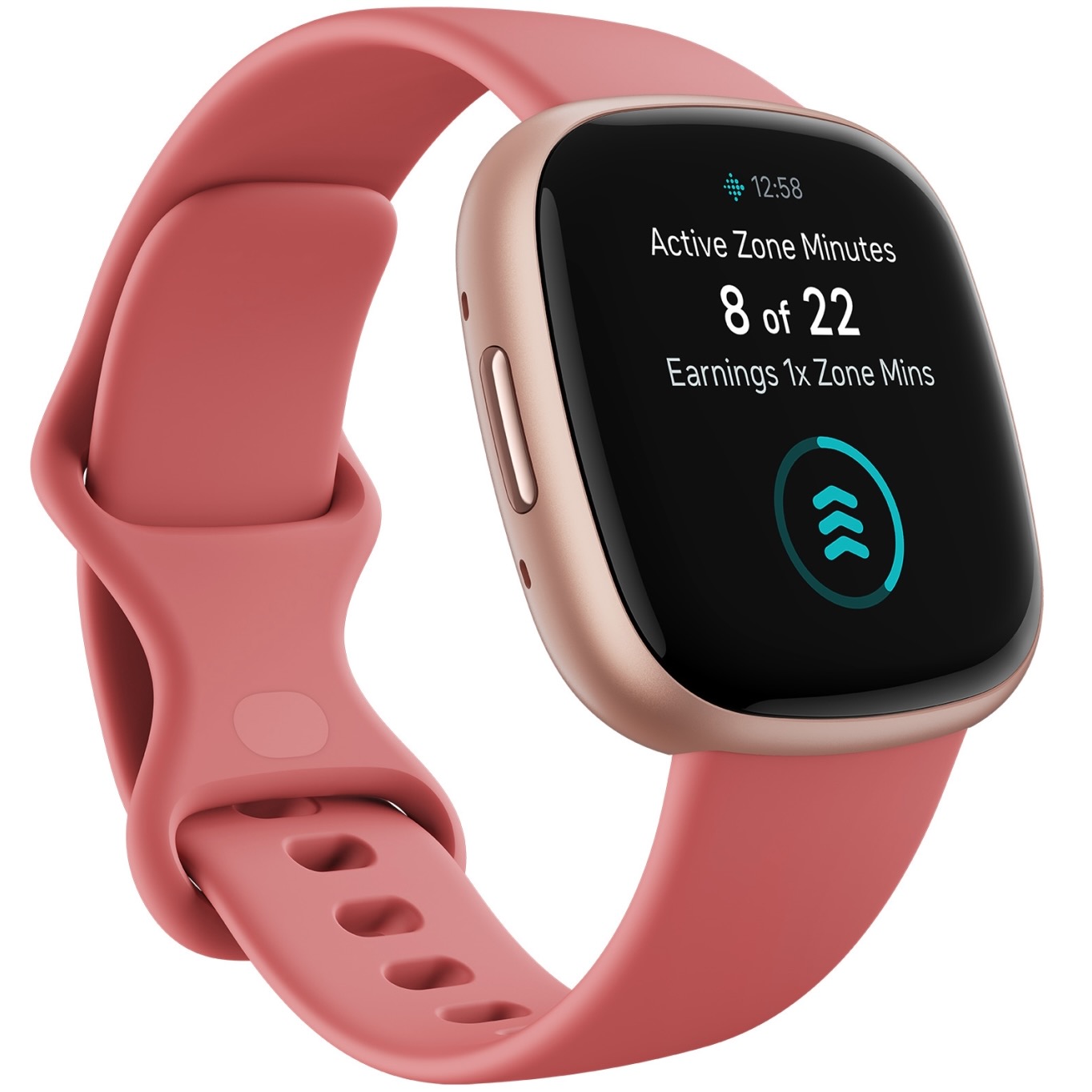

More fitness tracker than smartwatch
The Fitbit Versa 4 is in a weird place, as it is now further down on the company’s priority list. It’s still a great wearable, but is more of a fitness tracker with a few extra goodies included.