

You have a massive amount of freedom to customize your experience in Battlefield 6, and that extends to the HUD, as well. Here are some of the most important settings you can change.
Battlefield 6 has hundreds of settings available to customize your experience, whether graphics, audio, controls, and so on. It also offers a healthy suite of options to customize your HUD to accommodate personal taste, physical needs, or some other reason. Here’s how.
How to customize your HUD and UI in Battlefield 6
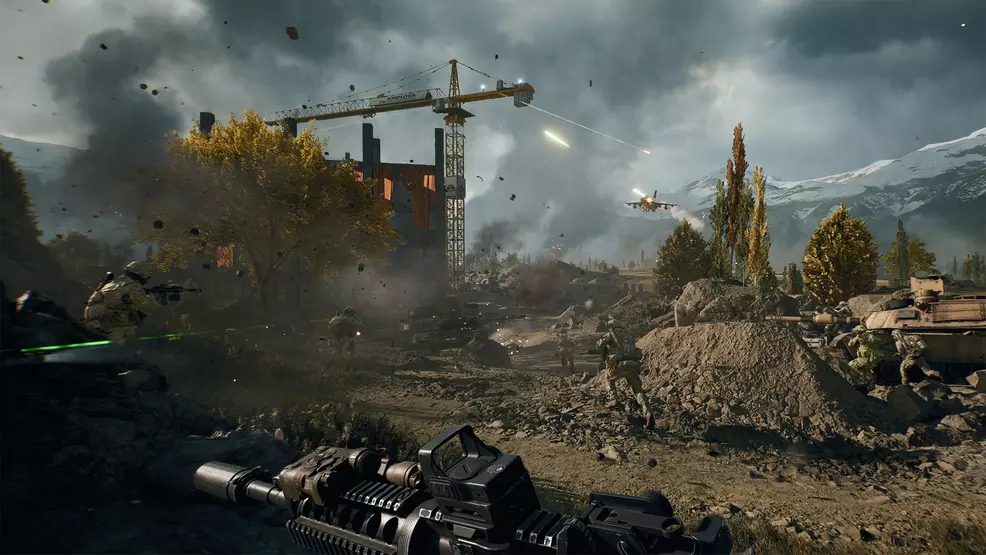
There are a myriad of HUD customization settings available in Battlefield 6: for your crosshairs, teammate identifiers, and vehicle UI, to name just a few. You have complete freedom to change the colors of each, and plenty of ability to alter their opacity, intensity, and so on.
The problem is, none of these settings share a menu, and most are buried at least two screens deep. We’ll go over where to find each and what you can do in them.
How to customize your crosshairs

You’ll find the crosshair customization options in the Graphics settings under the Icons & Indicators section. Selecting edit will open the screen where you can alter any settings you’d like, bu the most drastic are the color options.
This level of granularity is important because crosshairs and damage indicators are the most common icons you’re likely to see in BF6, and while their default colors are perfectly functional for most users, you have a lot of leeway in changing how they look.
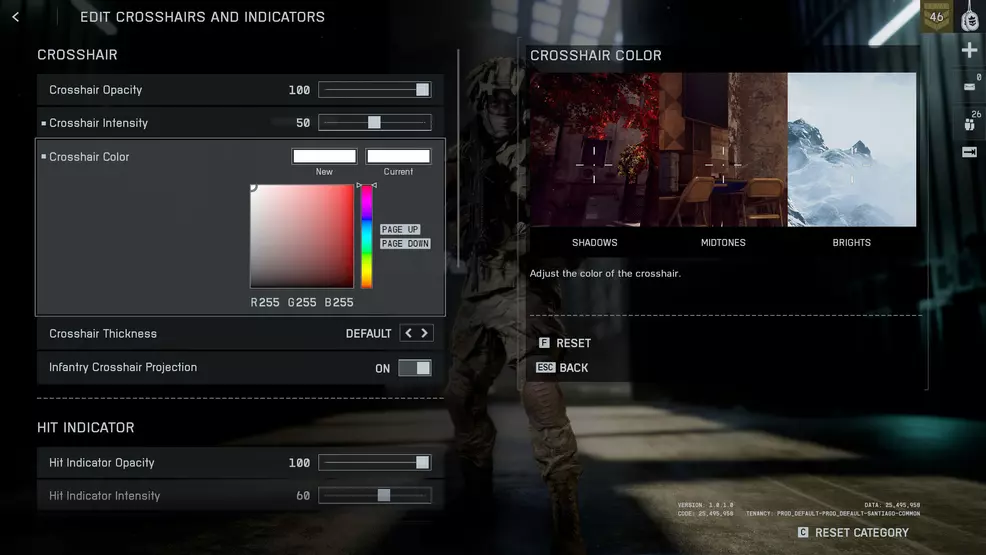
Use the palette you can open with the Crosshair Color selection to change its color to anything on the spectrum. The large square on the left shows all shades and saturations of the color you’ve selected on the bar on the right. If you want more red, drag the double arrows to the top, and move them up or down to change the base color. From there, select or drag within the larger square to choose the full range of colors, from bright white to deep black and all variations of the base color.
You can use the palettes in the Hit Indicator section to alter your hit marker colors. Your color choices are the same here and use the same system: a shade/saturation selector on the left, a base color bar on the right.
This customization screen also lets you alter your crosshair thickness, opacity, and intensity, as well as how your hit numbers are displayed. You can even change your damage color across both infantry and vehicle hits
How to customize your HUD
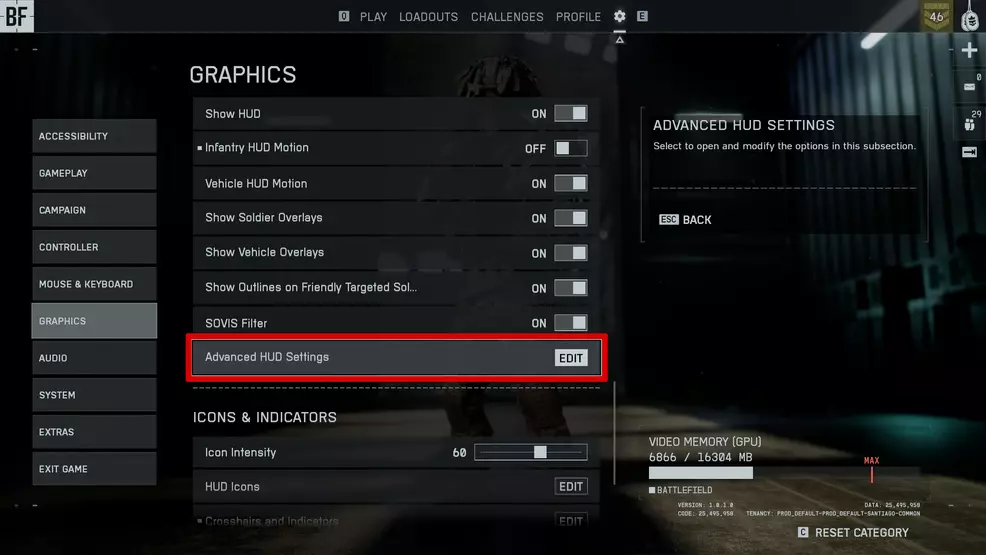
There are two screens where you can change how your HUD looks and feels. The first, under Graphics: Interface and HUD, is called Advanced HUD Settings, and gives you tons of options as to how the on-screen elements in a match work.
Whether that’s how opaque your map overlay is to your minimap size, rotation, or eyesight cone color, almost everything about your HUD is customizable here. Even your kill feed has a few dedicated options.
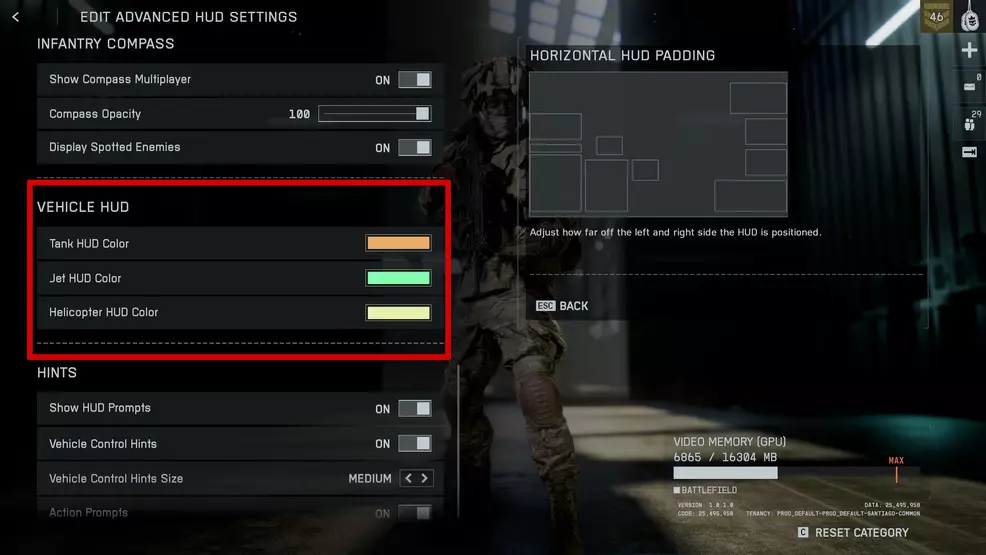
Near the bottom of the Advanced HUD Settings screen, you’ll find color palettes for your vehicle’s on-screen displays. The options here aren’t particularly granular, but you can alter them on the fly to suit your tastes or needs.
There are also more general HUD settings in the main Graphics menu, under Interface and HUD. These include the ability to turn off certain HUD elements, like overlays or HUD movemen,t when your character is exposed to physics. The SOVIS filter is the oddest of the bunch and seems to change how visible enemy players are in a match. I’d recommend keeping it on.
How to change color profiles
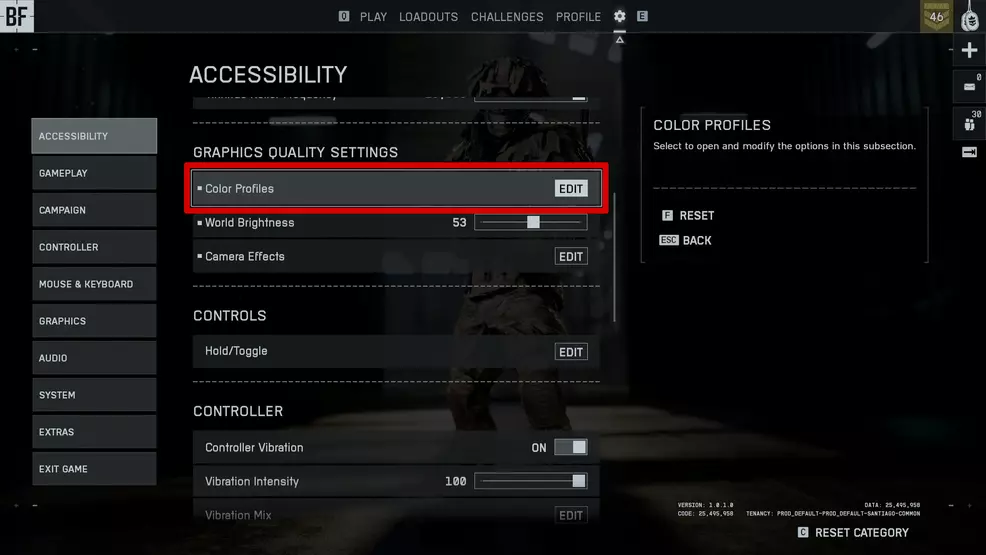
One of the more subtle but still incredibly valuable UI settings you can customize in Battlefield 6 is the set of color profile options. Available in the Accessibility menu under Graphics Quality Settings, color profiles are built for those with different forms of color blindness or anyone who wants a slightly different look to the BF6 interface.
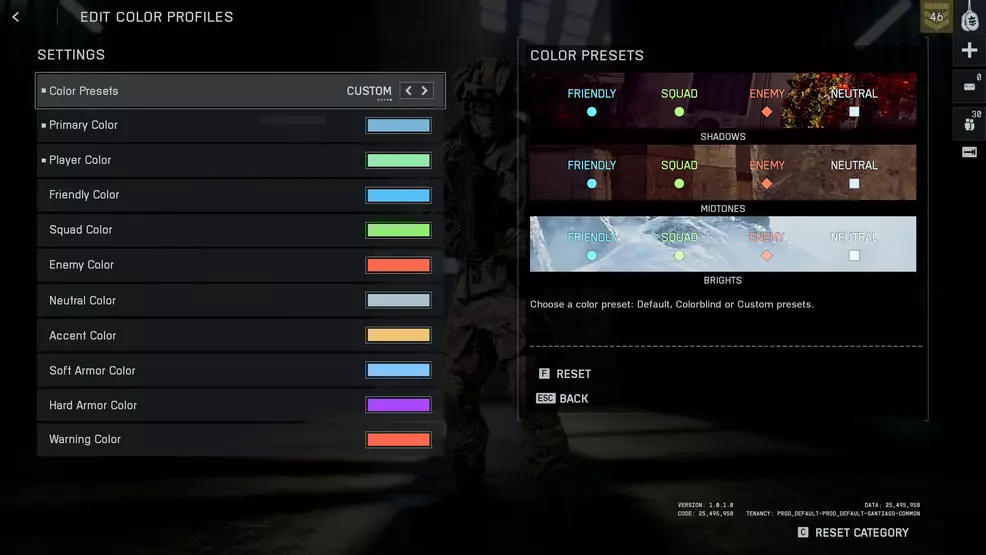
There are five color profile presets: default, deuteranopia, tritanopia, protanopia, and custom. The default is, as you’d expect, the baseline color set. The three -opias are for any colorblind players, and custom opens up the same shade/saturation palettes as those in the other color selection settings.
What you choose to customize is, of course, up to you. I know some people prefer to leave things as default as possible to avoid any strange interactions with their eyes or ability to identify things on the battlefield. Feel free to poke around and try different settings if the originals don’t jive with you.
If you’re looking for even more content on the game, check out our Battlefield 6 strategy guide.