

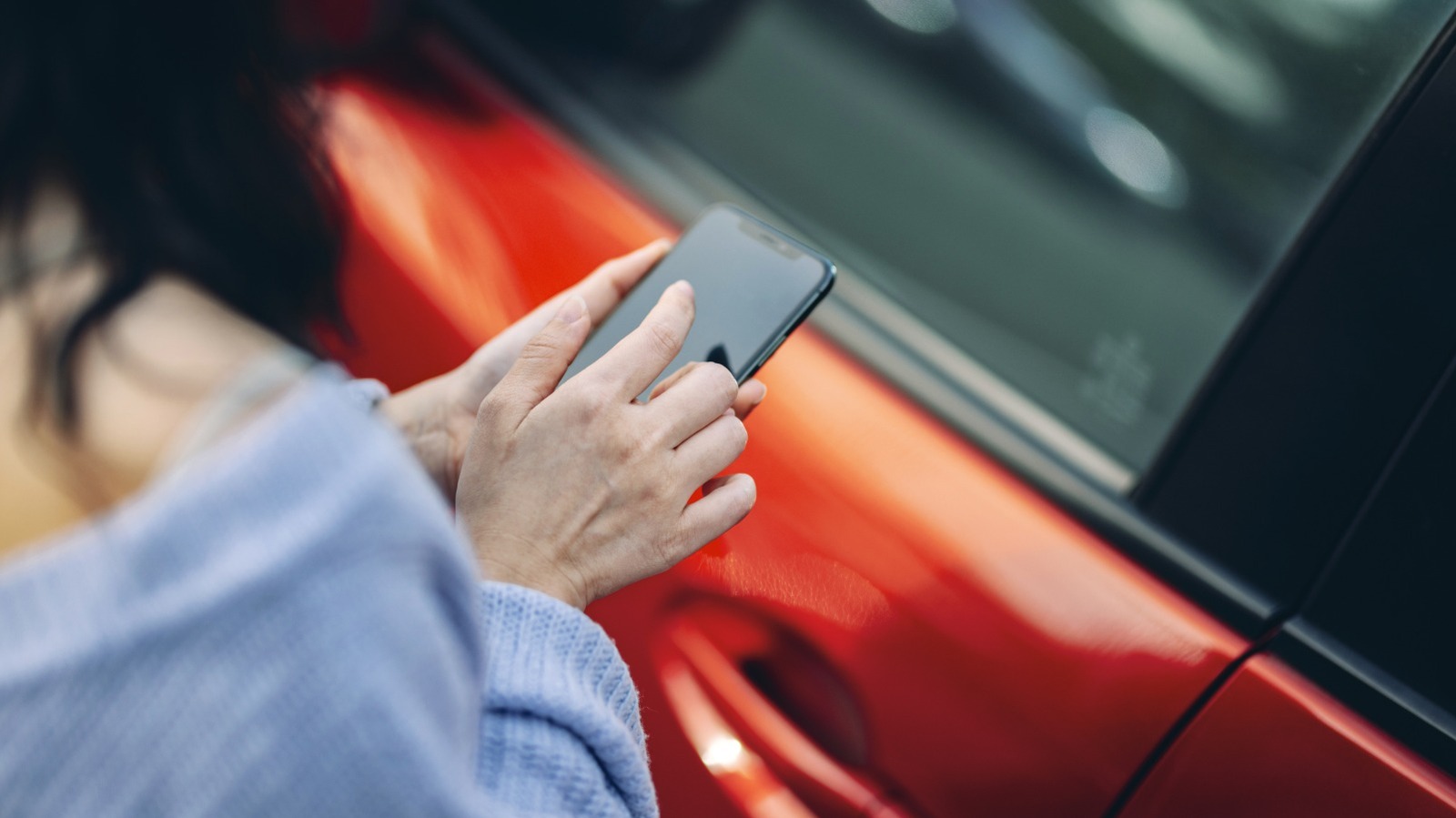
NFC, or Near Field Communication, is an incredibly underrated technology. It has existed on smartphones and other consumer electronics for years, and you might even be using it daily without realizing it. For instance, Tap to Pay is a convenience most take for granted today, and is a feature that relies on NFC. On iOS, the Wallet app handles your transactions, but there’s a lot more you can do with the Apple Wallet app beyond using it as a means of payment — such as using it to unlock your car.
The feature can be set up on an iPhone XS or newer, provided you own a compatible car. The list of car manufacturers that let you use your iPhone as a car key is growing and, as of late 2025, includes automakers like Chevrolet, GMC, Porsche, Cadillac, Audi, BMW, and Hyundai. If you’re uncertain whether this feature is available on your car, Apple recommends contacting your car manufacturer or dealership directly for confirmation.
The setup process will also differ depending on your car’s make and model. In most cases, you’ll need to go to the digital key settings using your car’s display and follow the instructions. To add your iPhone as a car key, position it near the key reader and let NFC perform the handshake. Once set up, your iPhone can be used to lock, unlock, and start your vehicle.
Using your iPhone to lock, unlock, and start your car
The ways you can use your iPhone to unlock your car will vary depending on the vehicle. Cars that support passive entry allow for the most seamless locking and unlocking experience. Your car automatically unlocks as you approach it with your phone — no need to even take it out of your pocket. Similarly, walking away will lock it. Your car may notify you via the Wallet app so you’re not left guessing whether it worked. Passive entry requires an iPhone 11 or newer, but is not supported by the iPhone SE and 16e models.
Some cars may only work via proximity-based interactions. This includes having to hold your iPhone close to your car’s door handle to lock or unlock it. Similarly, starting the car will require you to keep your iPhone close to your car’s key reader. Supported models may also allow for remote interactions. Launch the Wallet app on your iPhone and select your car key. You may be able to lock and unlock your vehicle here, provided you’re in Bluetooth range of your car.
Express Mode is turned on by default when you add your digital car keys to Apple Wallet. This streamlines the process by letting you use your iPhone to lock and unlock your car without requiring authentication via Face ID or Touch ID. You can always turn Express Mode off for better security.
Managing your digital car key on Apple Wallet
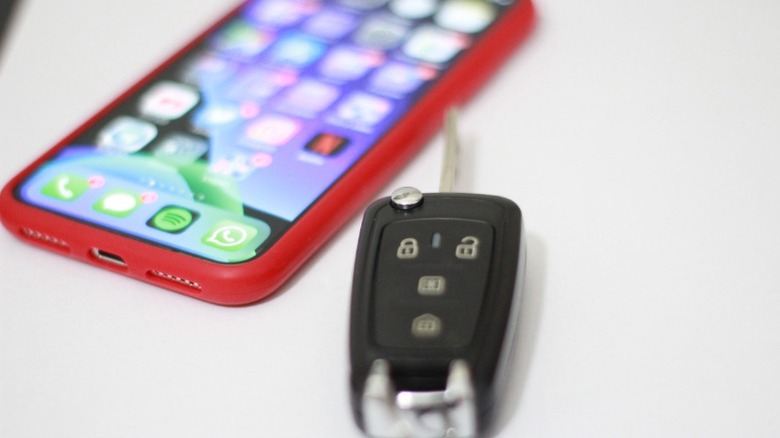
If you own an Apple Watch Series 5 or newer, the ability to unlock your car through NFC carries over automatically. This means you can gently touch your Apple Watch to your car’s door handles or the key reader to perform the same actions. Passive entry, however, requires an Apple Watch Series 6 or later. In case you’re unable to use your Apple Watch as a digital key for your car, you can manually add the functionality by launching the Apple Watch app on the paired iPhone, navigating to Wallet & Apple Pay, and tapping on the “Add” button next to your car key.
The Wallet app also lets you share your car key with a trusted contact. This may be a family member or a friend you’re loaning your car to. They might be required to use a one-time activation code, after which the car key will be stored on their iPhone. You can manage permissions by navigating to the Wallet app, selecting your car key, and tapping on the people icon.
Power reserve allows you to use your iPhone to unlock your car even with a dead battery. This works alongside Express Mode and is only available as a fail-safe if your phone dies. Note that this feature is not available if you’ve manually switched off your iPhone. If your iPhone is stolen, marking it as lost will untether your car keys from it.

